Every online interaction—from signing up for a newsletter and creating shopping accounts to browsing social media—leaves behind personal data. While digital services make daily tasks convenient, they also create multiple avenues for data collection, tracking, and potential privacy exposure.
Protecting your personal information does not require abandoning digital tools or living offline. Instead, it involves adopting intentional cybersecurity habits, understanding how your data is collected, and establishing practical boundaries across your devices and accounts. This guide explores the core principles of personal online privacy, common risks, and actionable steps to secure your digital footprint.
Why Protecting Your Personal Information Matters
Personal data is valuable, and it is frequently targeted by data brokers, advertisers, and cybercriminals. Failing to secure your information can lead to several practical risks:
- Identity Theft and Fraud: Criminals can use exposed details—such as your full name, date of birth, address, or government ID numbers—to open fraudulent financial accounts, apply for loans, or impersonate you.
- Credential Stuffing and Account Takeovers: When one website suffers a data breach, leaked email and password combinations are automatically tested on other platforms, risking your banking, email, and social media accounts if you reuse passwords.
- Targeted Phishing: Scammers use details harvested from social media or public registries to craft highly convincing, personalized phishing messages tailored to your recent purchases or employer.
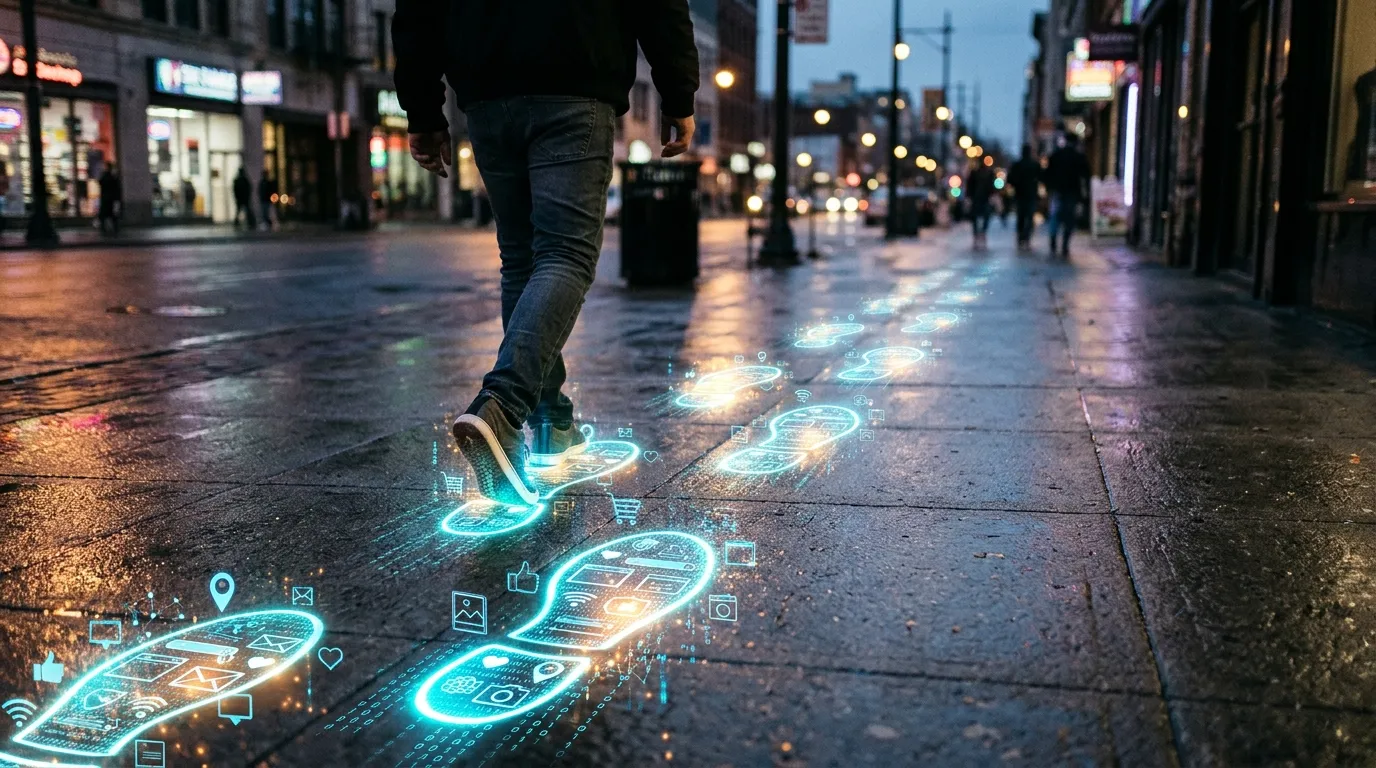
- Excessive Data Tracking: Unregulated data collection allows third parties to build intrusive behavioral profiles, tracking your location, browsing habits, and purchasing preferences across the web.
Key Areas of Your Digital Life to Secure
Protecting your online presence requires focusing on four primary pillars: authentication, communication, browsing habits, and account hygiene.
1. Authentication and Account Access
Weak or reused passwords remain the single easiest entry point for attackers. Securing your accounts requires moving away from memorable, simple passwords and adopting modern authentication tools:
- Unique Passwords: Every account needs a long, complex, and 100% unique password managed via an encrypted password manager.
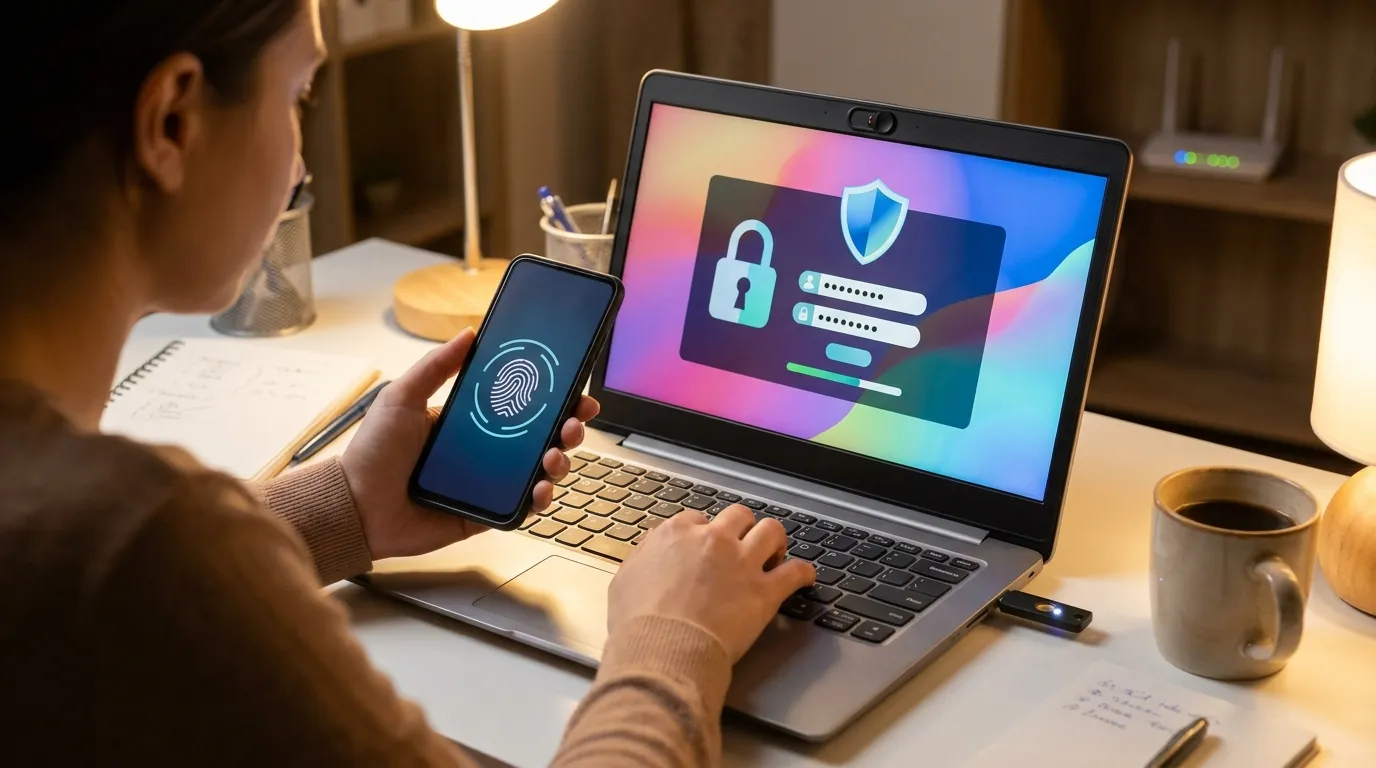
- Multi-Factor Authentication (MFA): Adding a second verification step—such as an authenticator app (like Google Authenticator or 2FAS) or a physical hardware security key—prevents unauthorized access even if your password is exposed.
- Passkeys: Where supported, use passkeys tied to your device's biometric unlock (Face ID, fingerprint, or PIN) as a secure, phishing-resistant replacement for traditional passwords.
2. Personal Information Hygiene
Be selective about what data you share online and where you submit your details:
- Limit Public Over-Sharing: Review your social media privacy settings to restrict personal updates, birthdates, vacation plans, and family photos to trusted connections rather than public viewing.
- Minimize Form Fields: When registering for new services or newsletters, provide only mandatory information and avoid filling out optional fields like home addresses, phone numbers, or relationship statuses.
- Use Secondary Email Addresses: Create a separate, disposable or secondary email address for online shopping, forum sign-ups, and newsletter subscriptions to keep your primary personal email free from spam and breach exposure.
3. Network and Device Security
Your devices and connection channels act as the gateway to your personal files:
- Secure Your Home Wi-Fi: Change default router administrator credentials, enable WPA3 (or WPA2) encryption, and keep router firmware updated.
- Use a VPN on Public Networks: When connecting to unsecured Wi-Fi networks at airports, hotels, or cafes, use a reputable Virtual Private Network (VPN) to encrypt your internet traffic and protect data in transit.
- Manage App Permissions: Periodically check mobile app settings and revoke unnecessary access to your device's microphone, camera, contacts, and precise location.
4. Safe Browsing and Communication Habits
- Verify Links and Senders: Never click urgent links in text messages or emails claiming your bank account, streaming subscription, or package delivery has an issue. Instead, open a new browser tab and navigate directly to the official website or app.
- Watch for Metadata: Strip location and device metadata (EXIF data) from photos before posting them publicly online.
- Keep Software Updated: Enable automatic updates for your operating system, web browser, and security software to patch newly discovered vulnerabilities.
Practical Steps to Take Today
- Secure Your Primary Email Account: Your main email address controls password resets for almost every other service you use. Ensure it has a strong, unique passphrase and app-based two-factor authentication enabled immediately.
- Set Up a Password Manager: Transition to a reputable password manager to generate and store unique credentials for every online account.
- Perform an Account Audit: Close old, unused online accounts and search your name in search engines to see what public information is visible.
- Review App and Device Permissions: Open your smartphone settings and remove location and sensor permissions from apps that do not require them.
Frequently Asked Questions (FAQ)
Can I completely erase my digital footprint? No. Once information is published or transmitted online, copies may persist in backups, archives, or third-party databases. However, you can significantly reduce your public exposure by deleting old accounts, tightening privacy settings, and submitting data removal requests.
Is using a password manager safe? Yes. Reputable password managers use strong end-to-end and zero-knowledge encryption, meaning your vault is encrypted locally on your device using your master password before it ever touches remote servers. They are far safer than reusing passwords or writing them down on paper.
What should I do if I suspect my personal information was leaked in a data breach? Check breach-monitoring tools (such as Have I Been Pwned or your password manager's security dashboard) to see which accounts were affected. Immediately change your password on the compromised service—and any other accounts where you used that same password—and ensure two-factor authentication is enabled.
Does using "Incognito" or private browsing hide my personal data? No. Private browsing modes only stop your browser from saving local history, cookies, and form data on your device after you close the window. Websites, internet service providers (ISPs), and network administrators can still observe your activity and IP address while you browse.
Sources & Further Reference
- Federal Trade Commission (FTC) – How to Keep Your Personal Information Secure
- Cybersecurity and Infrastructure Security Agency (CISA) – Tips for Protecting Your Personal Identity and Data
- National Institute of Standards and Technology (NIST) – Digital Identity Guidelines
- Consumer Reports – Data Privacy and Security Guide
Disclaimer: This article is intended for general educational and informational purposes only and does not constitute professional cybersecurity or legal advice. Privacy regulations and online threat landscapes vary by jurisdiction and evolve continuously.